Downloading cost documents from KSeF.
Correct invoice issuance depends on the proper preparation of the system for work and the selection of the appropriate template.
Invoices can be issued in the Przychody/Dokumenty sprzedażowe tab by selecting the Wystaw z szablonu. Clicking next to the magnifying glass in the Wyszukaj field will expand the list of available templates. You can also select the Issue invoice option, which will cause the system to insert a standard sales invoice template. If, after issuing an invoice, you are going to send it to KSeF, it is necessary to upload KSeF certificates, which will enable full integration with the National e-Invoice System (Krajowy System e-Faktur). The process of uploading KSeF certificates to the mOrganizer finansów system is described in the article Generating and uploading KSeF certificate.
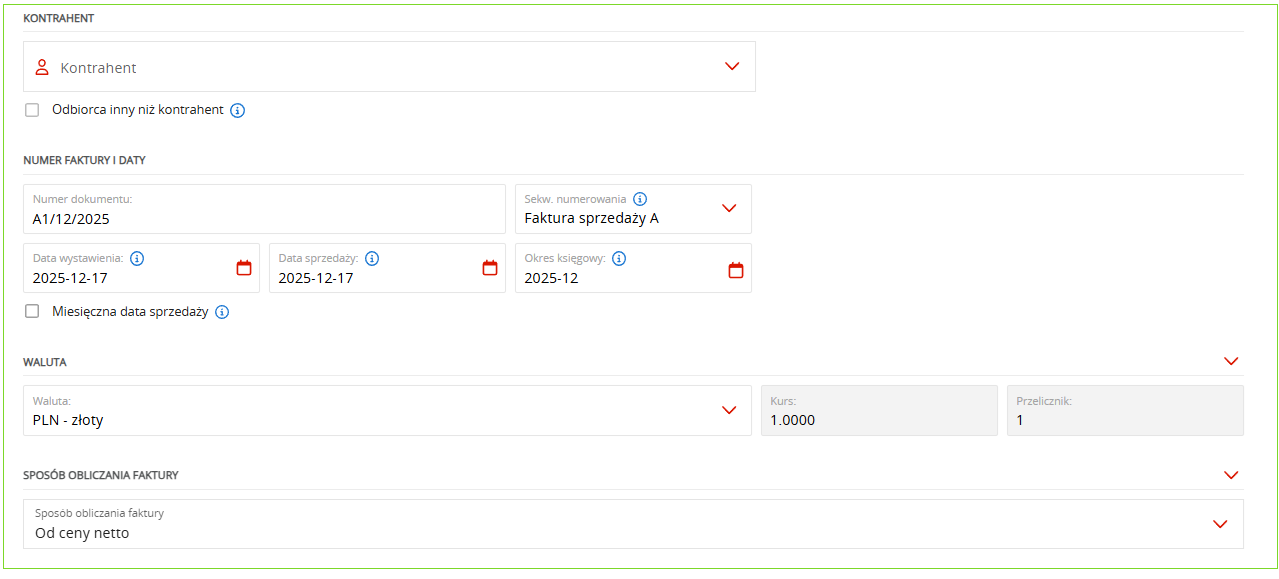
When issuing an invoice, you should:
- enter the contractor,
- enter the document number (usually calculated cumulatively according to the selected sequence),
- include the issue and sale dates and the relevant accounting period,
- select the currency in which the invoice is to be issued,
- select the method of calculating the document,
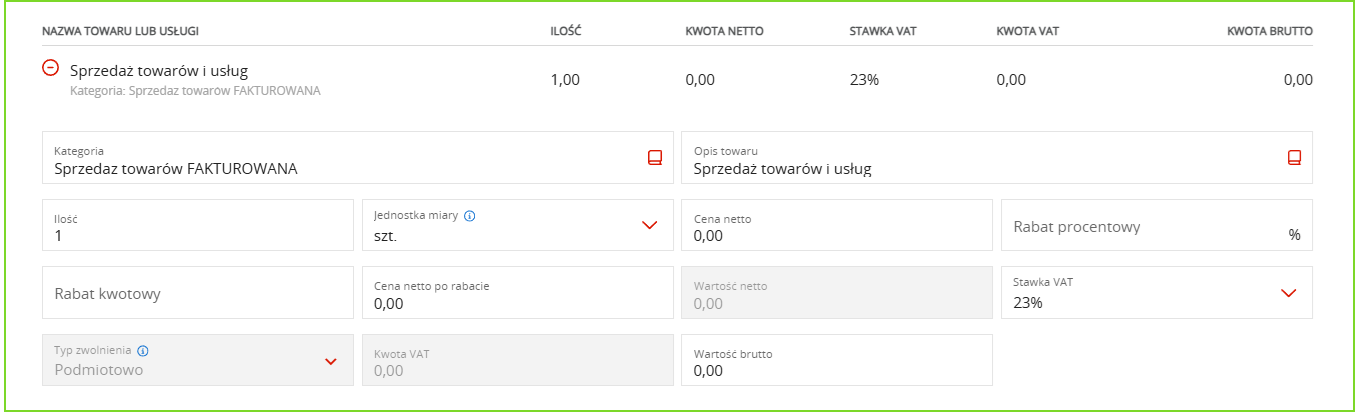
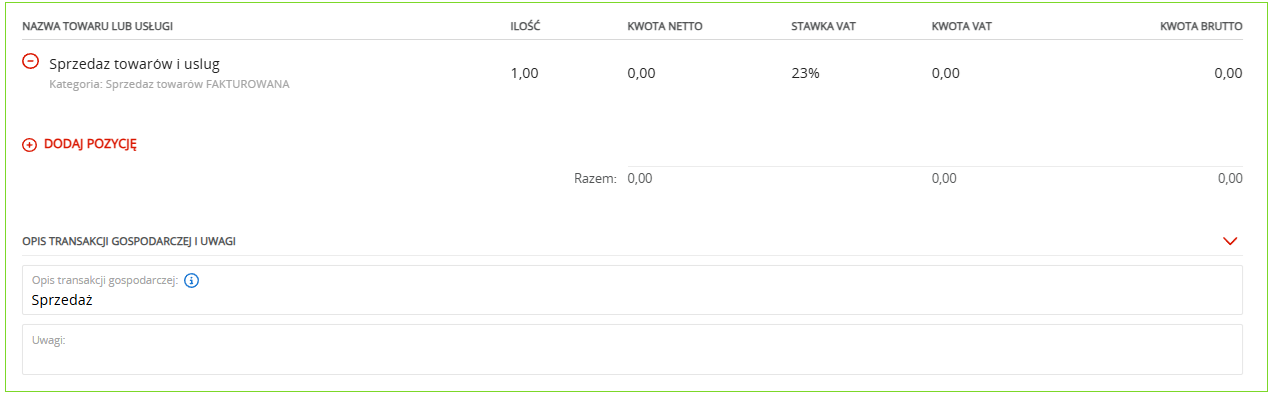
- complete the document items (description, price, quantity, VAT rate),
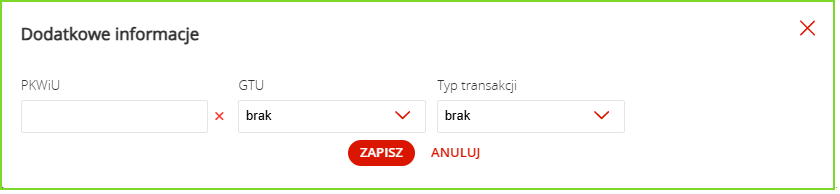
- complete the PKWiU code, GTU, and transaction type (if not applicable, select the “none” option and leave the PKWiU field blank),
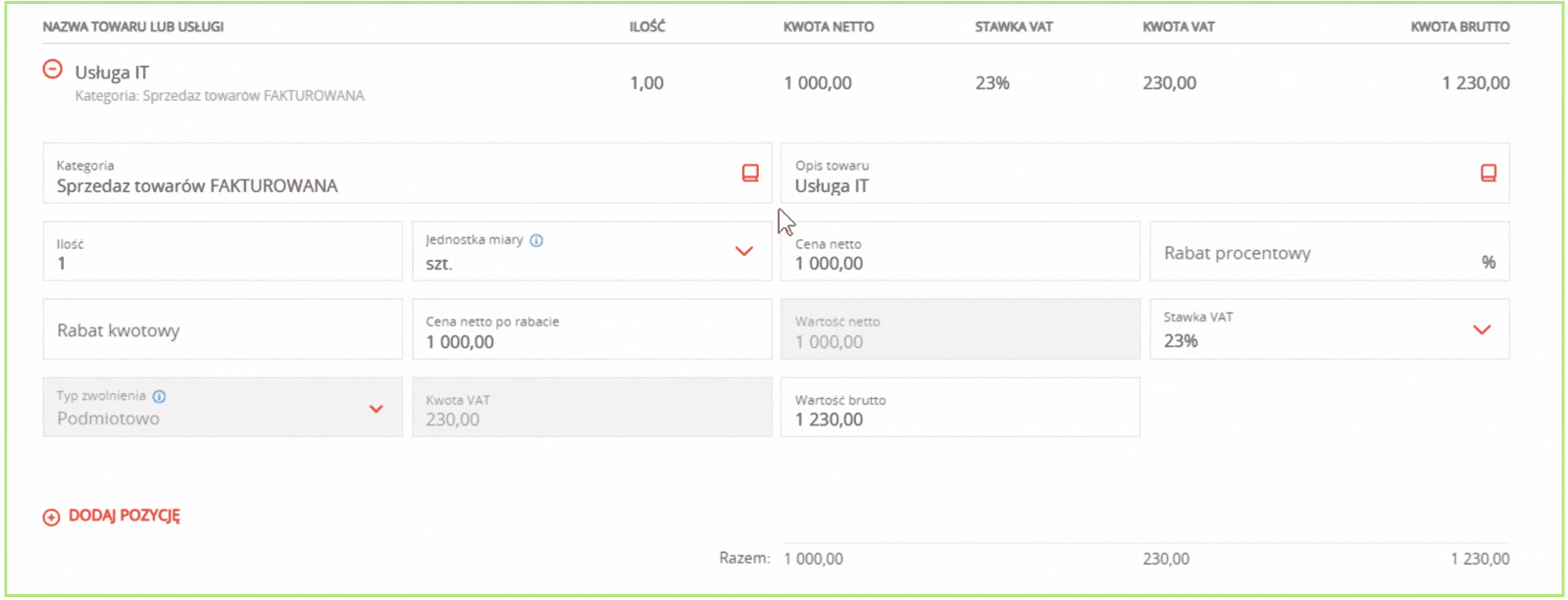
The options are available after clicking on the book icon in the Kategoria field.
- fill in the description of the business transaction,
- enter additional information in the Uwagi field,
- select the type of payment,
- enter the appropriate bank account number,
- select the payment date,
- confirm the entered data with the Wystaw button.
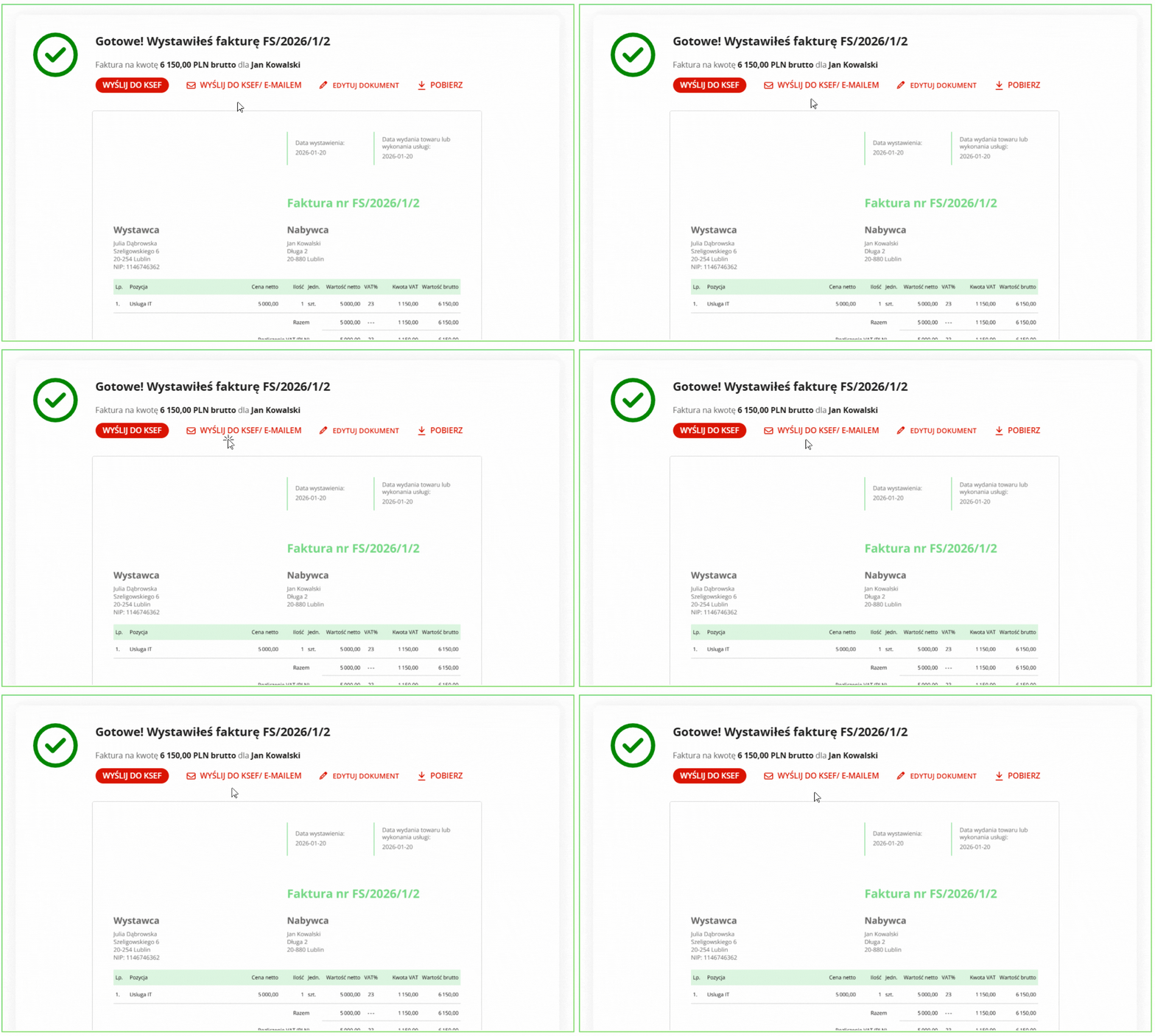
After issuing the invoice, you will receive a success message informing you that you have issued the invoice.
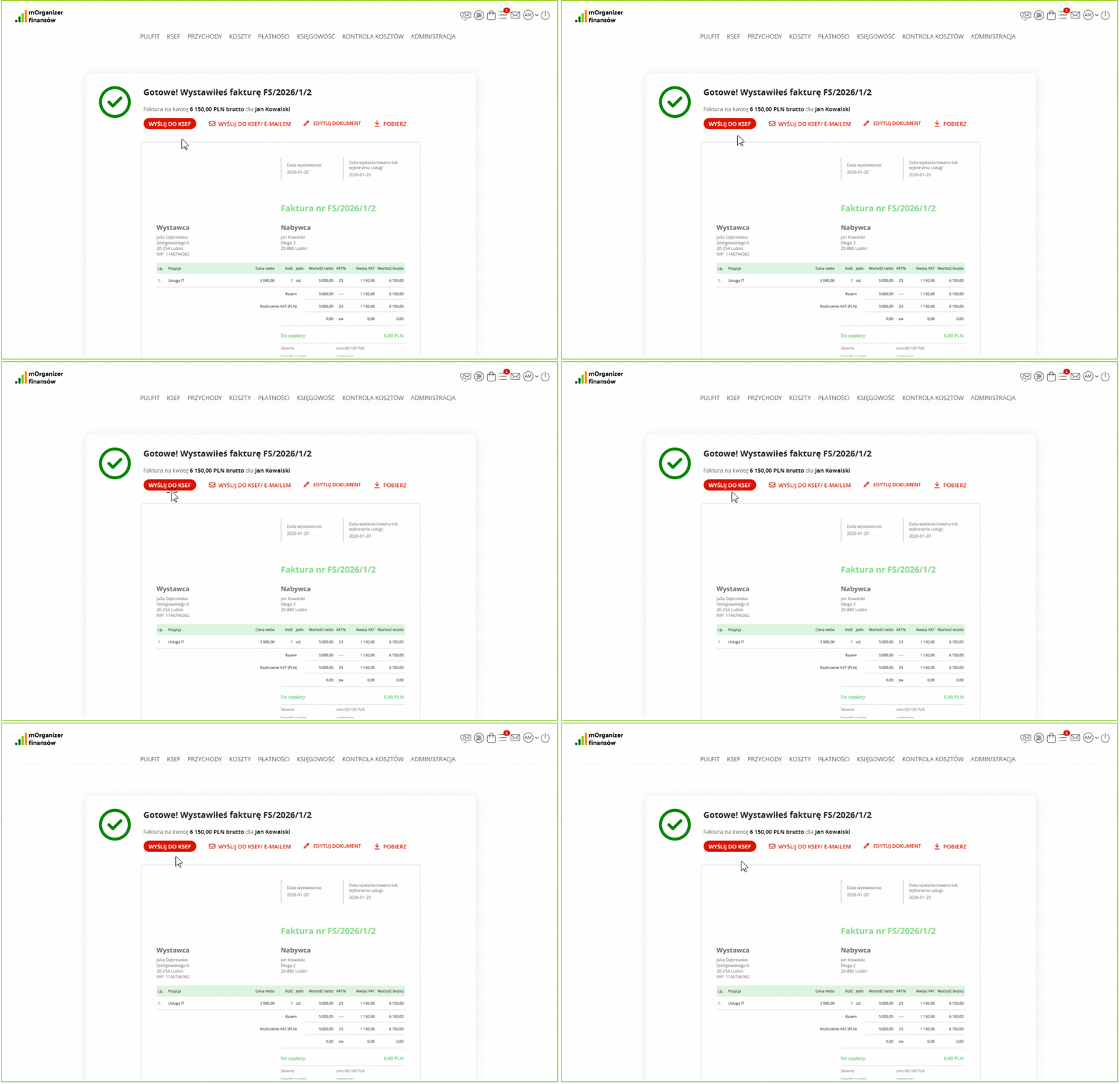
From this level, you can:
- send the invoice to the customer,
- send the invoice to KSeF,
- preview the document,
- download the document,
- edit the document.
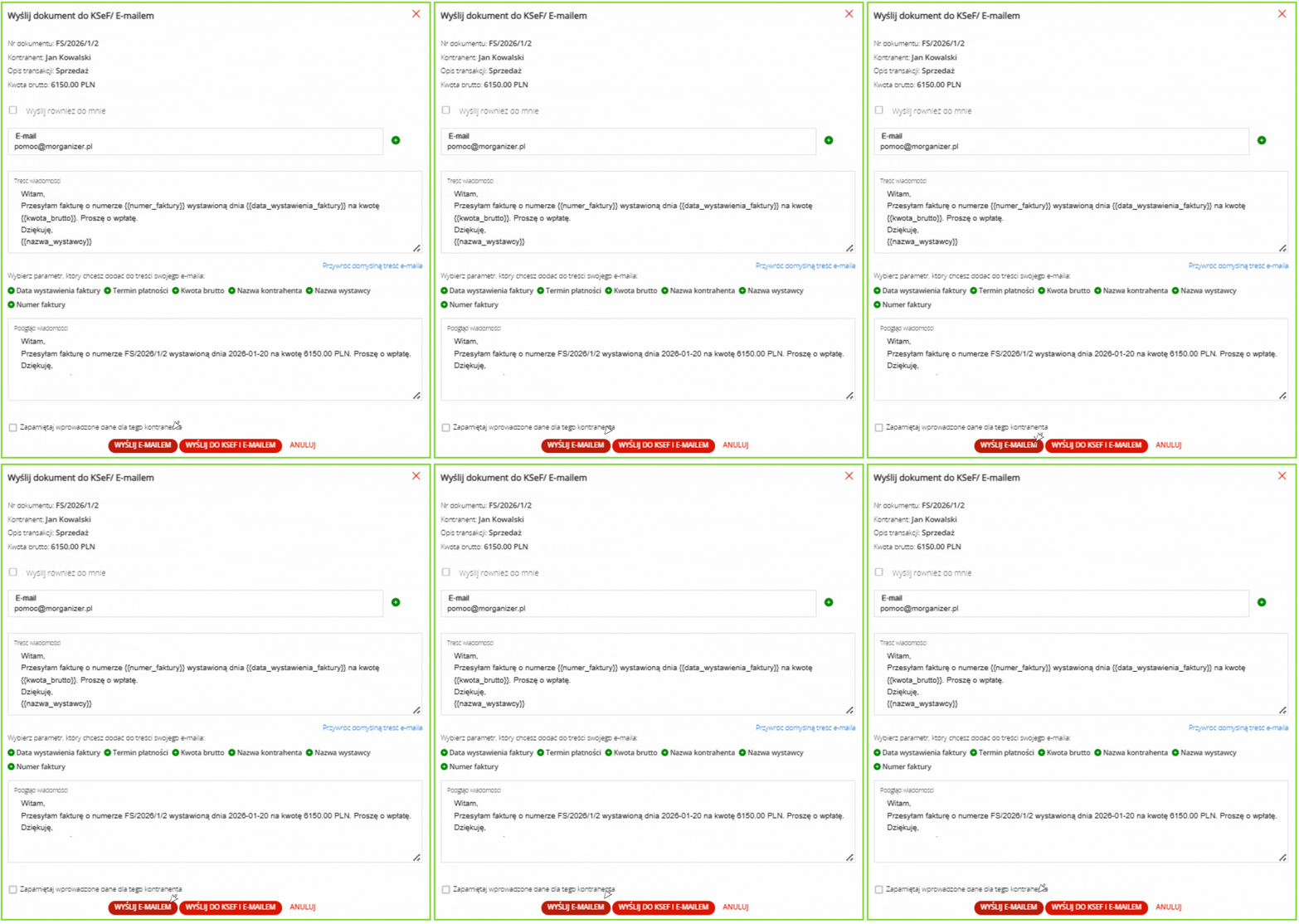
To send the invoice to the contractor by email, select the option Wyślij do KSeF/e-mailem.
Then enter the contractor's email address and click below Wyślij e-mailem.
Go back to the Przychody/Dokumenty sprzedażowe tab, from where you can also send the invoice to the National e-Invoice System by hovering the cursor over the document and selecting the Wyślij do KSeF.
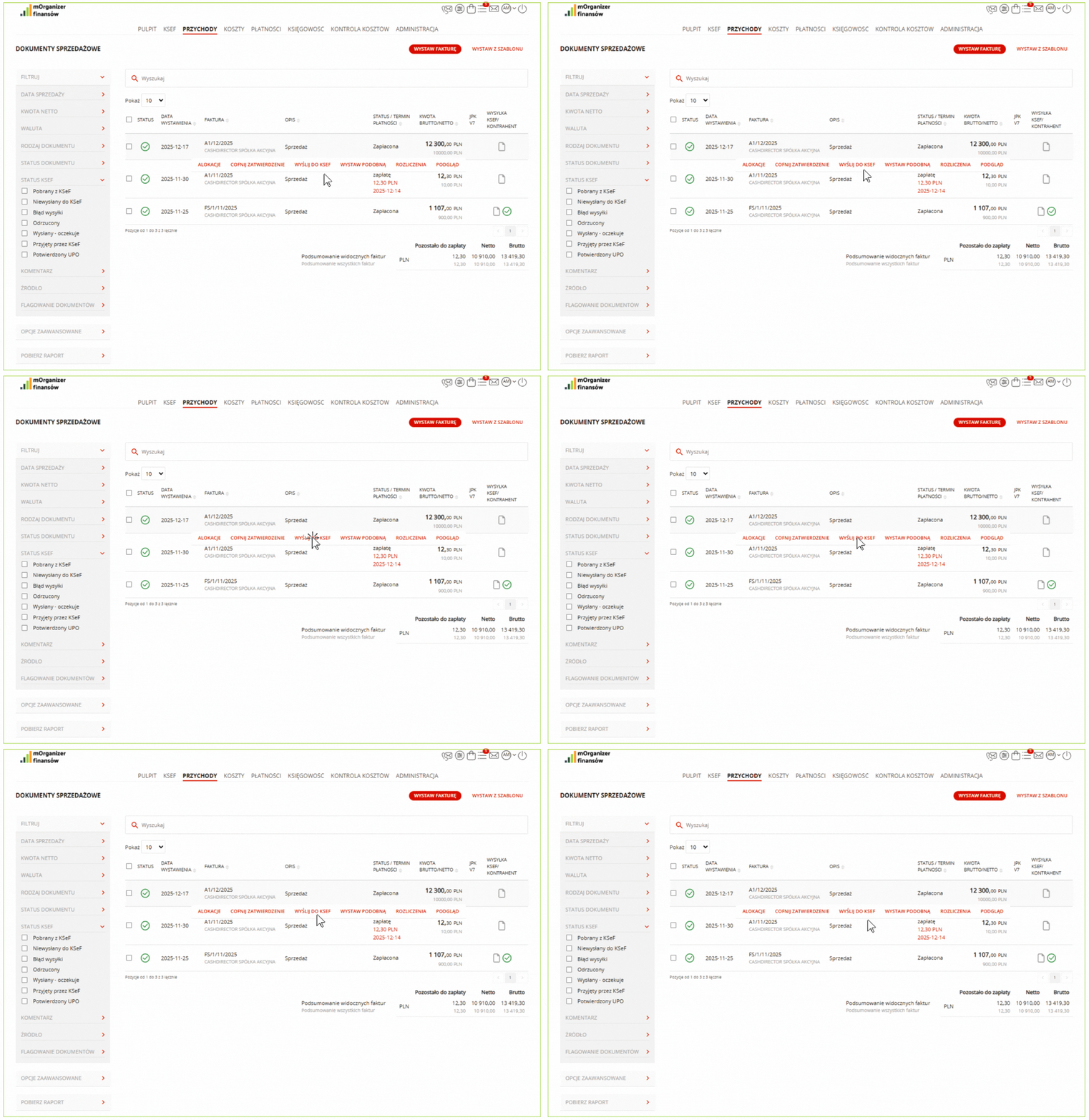
After clicking the Wyślij do KSeF option, the system automatically updates the document status in the KSeF column.
Possible statuses:
- Spoza KSeF (Outside KSeF);
- Błąd wysyłki (Sending error);
- Odrzucony (Rejected);
- Wysłany – oczekuje (Sent – pending);
- Przyjęty przez KSeF (Accepted by KSeF);
- Potwierdzony UPO (UPO confirmed).
When you hover your mouse cursor over the KSeF status icon, basic information is displayed:
- date of the shipping order,
- current status,
- KSeF number (if available),
- user who ordered the shipment.
Offline sending
When sending a document offline:
- after clicking the Wyślij do KSeF button, a window will appear informing you that the document will be sent offline,
- the document will be marked as sent offline.
Email notifications regarding shipping to KSeF
The system sends email notifications related to the shipping of documents to KSeF in two cases:
- daily – a summary of the statuses of documents sent and not sent to KSeF,
- after each document is sent to KSeF – a notification of the completed operation.
Notifications are sent according to the user's configuration in Ustawieniach KSeF.
If a cost invoice has been issued and sent to KSeF for you, you will find it in the Pulpit/eSegregator tab. Downloading and approving documents in eSegregator is described in the article Downloading cost documents from KSeF.

Czy ten artykuł był pomocny?
To wspaniale!
Dziękujemy za opinię
Przepraszamy, że nie udało nam się pomóc!
Dziękujemy za opinię
Wysłano opinię
Doceniamy Twój wysiłek i postaramy się naprawić artykuł